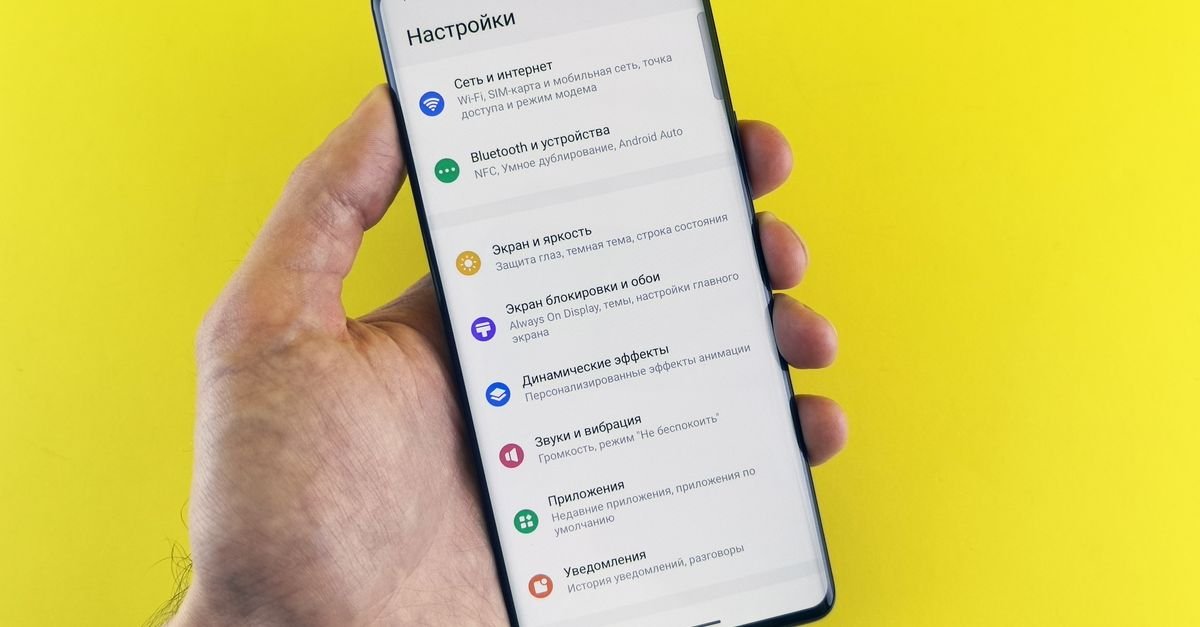
There is a nearly universal lifecycle that every Android smartphone owner experiences. On the day of unboxing, your device feels blindingly fast: application launches are instantaneous, scrolling through Instagram feeds is butter-smooth, and system navigation responds with crisp, fluid precision. Fast forward twelve to eighteen months, however, and the device tells an entirely different story. Swiping down the notification shade stutters, typing on the virtual keyboard lags behind your thumbs, opening the camera app takes five agonizing seconds, and simple multitasking causes background applications to crash or restart constantly.
The immediate consumer impulse in India is often resignation: assuming the handset has become obsolete and preparing to spend Rs 20,000 to Rs 40,000 on an upgrade. In over 85 percent of cases, however, hardware obsolescence is not the culprit. Modern multi-core processors from Qualcomm and MediaTek remain exceptionally capable for years. What has degraded is the software environment: accumulated flash storage fragmentation, background service bloat, rogue cache databases, unoptimized OEM background daemons, and misconfigured system animations. In this comprehensive, step-by-step masterclass, we present 10 proven, technically grounded strategies to revive your sluggish Android phone and restore its day-one speed—without spending a single rupee.
Understanding the Decay: Why Do Android Phones Slow Down Over Time?
To fix system sluggishness effectively, one must understand the underlying computational bottlenecks of the Android operating system. Three primary factors contribute to progressive performance degradation:
- Solid-State NAND Storage I/O Degradation: Modern smartphone storage (UFS 2.2, 3.1, or 4.0) relies on empty flash blocks for high-speed read/write throughput. When internal storage capacity fills past 85 to 90 percent, the Linux kernel’s storage controller must constantly execute real-time garbage collection, wear-leveling, and trim operations before writing new data, causing severe system-wide input/output (I/O) wait spikes that manifest as freezes and stutters.
- Background Memory Thrashing (RAM Saturation): Applications in India (especially messaging platforms, shopping apps, and ride-hailing services) aggressively register persistent background services to push notifications and gather telemetry. When random access memory (RAM) is continuously saturated, Android’s Low Memory Killer (LMK) daemon constantly evicts and reloads processes from flash storage, inducing severe computational lag.
- Corrupted WebView & Cache Databases: Android System WebView powers in-app browsing across social media platforms. Over months of usage, cached JavaScript scripts, obsolete cookies, and temporary network assets become fragmented, causing browser rendering engines to choke.
Method 1: Breach the Critical Storage Threshold (Free Up 20% Capacity)
The single most impactful action you can take to immediately restore read/write speeds is ensuring that at least 15 to 20 percent of your internal storage remains completely free. If you own a 128GB device, you should maintain at least 20GB of unallocated space.
Actionable Storage Triage Steps
- Offload Photos to Cloud Backup: Open the Google Photos app, tap your profile avatar in the upper-right corner, and select Free up space. This safely deletes locally stored image and video files that have already been securely synced to your cloud account, instantly reclaiming gigabytes of high-speed local memory.
- Tackle the WhatsApp Media Monster: For Indian smartphone users, WhatsApp is almost always the single largest consumer of flash memory. Open WhatsApp, navigate to Settings → Storage and data → Manage storage. Review the section labeled “Larger than 5 MB” and delete forwarded festival video clips and massive PDF attachments. Scroll down to heavy family and neighborhood group chats and bulk-delete ancient media.
- Purge the Downloads Folder: Using Google’s official Files by Google application, open the Downloads folder. You will invariably discover forgotten PDF bank statements, flight boarding passes, APK install packages, and duplicate files that can be eradicated with one tap.
Method 2: The Legendary 0.5x Developer Animation Hack
If you want your smartphone to feel twice as fast instantly, this hidden developer setting is the holy grail. Modern Android skins use aesthetic animation curves (window fades, app zoom transitions, and menu slide-ins) designed to look cinematic. Over time, these animations feel sluggish. Halving their duration cuts visual transit latency in half:
- Navigate to your device’s Settings → About Phone.
- Locate the field labeled Build Number (on Xiaomi/Poco, tap ‘OS version’; on OnePlus/Oppo, tap ‘Version’ then ‘Build number’).
- Tap Build Number rapidly seven consecutive times until an on-screen toast notification proclaims: “You are now a developer!” (Enter your PIN if prompted).
- Return to the main Settings menu and navigate to System → Developer Options (or Additional Settings → Developer Options).
- Scroll down through the developer settings until you reach the Drawing section.
- Locate three specific settings:
- Window animation scale (Default: 1x) → Change to 0.5x
- Transition animation scale (Default: 1x) → Change to 0.5x
- Animator duration scale (Default: 1x) → Change to 0.5x
- Exit Settings. The very instant you tap your home button, app switching and menu navigation will feel lightning-fast.
Method 3: Clear App Caches Without Deleting Personal Data
A critical distinction that confuses everyday users is the difference between Clear Cache and Clear Data:
- Clear Data (Nuclear Option): Wipes all user logins, settings, account credentials, and databases. The app reverts to the exact state it was in when freshly downloaded from the Play Store.
- Clear Cache (Safe Maintenance): Deletes temporary downloaded assets, image thumbnails, and pre-rendered web scripts. It does not log you out of your account, delete chats, or erase personal preferences.
Head to Settings → Apps → See all apps. Sort the list by size. Open heavy offenders—specifically Google Chrome, Instagram, YouTube, Facebook, Snapchat, and X (Twitter). Tap Storage & cache and press Clear Cache. On devices that haven’t been cleaned in months, clearing cache across these six apps routinely recovers 8GB to 12GB of cluttered storage and eliminates app freeze-ups.
Method 4: Tame Aggressive Background Battery Drains
Many apps continue running active background processes long after you swipe them away from your recent apps tray, draining battery life and stealing CPU cycles from your foreground tasks. To restrict rogue apps:
Navigate to Settings → Apps, select non-essential applications (such as shopping platforms, casual games, and travel booking apps that do not require real-time background sync), tap App battery usage, and toggle the setting to Restricted. This prevents the application from waking up your processor when closed, preserving vital system RAM and extending battery endurance.
Method 5: Eradicate OEM Bloatware and Promotional Services
Smartphone manufacturers—particularly on budget devices from Xiaomi, Realme, Poco, and Vivo—often subsidize low hardware margins by bundling pre-installed third-party games, promotional utility apps, and background advertising daemons. These background services consume continuous RAM cycles.
Go through your app drawer systematically. For any third-party app you did not install and do not use, long-press the icon and tap Uninstall. For pre-installed system apps that the manufacturer prevents you from uninstalling, tap Disable. A disabled application cannot run in the background, cannot auto-update, and vanishes from your app drawer. Furthermore, open system storefronts (like Xiaomi’s GetApps or Vivo’s V-Appstore) and disable automatic app updates and promotional lock-screen wallpaper carousels (such as Glance), which consume substantial background data and CPU power.
Method 6: Switch to a Lightweight, Modern Launcher
Heavily customized default launchers bundled with Android custom skins (such as older iterations of MIUI or heavy carrier skins) are packed with resource-heavy widgets, news feeds, and background animations that place heavy demands on budget hardware. Installing an efficient, lightweight third-party launcher can dramatically reduce home-screen redraw latency:
- Niagara Launcher: An ultra-minimalist, ergonomic list-based launcher designed for one-handed navigation. It uses a fraction of system RAM and renders home-screen actions with blazing speed.
- Microsoft Launcher: Highly optimized, clean, and integrates deeply with Microsoft 365, Google calendar feeds, and clean search bars without promotional clutter.
- Lawnchair: An open-source, bloat-free launcher that recreates the clean, responsive aesthetic of Google Pixel devices.
Method 7: Audit Widgets, Live Wallpapers, and Display Refresh Rates
While dynamic live wallpapers and multi-layered home-screen weather tickers look visually appealing, they force your graphic processor (GPU) to continually render animations in the background. Replace animated wallpapers with clean, static high-resolution images. Remove complex third-party widgets that refresh data every five minutes.
Additionally, check your display settings: navigate to Settings → Display → Refresh Rate. Many users accidentally leave their devices locked at 60Hz. If your smartphone supports 90Hz or 120Hz, ensure high refresh rate is enabled. While this does not accelerate processor computation, the higher refresh rate dramatically enhances perceived smoothness during scrolling and gesture navigation.
Method 8: Update Core System Components via Google Play
Many users assume that system optimization requires major full-version Android upgrades. In modern Android architecture, however, critical system frameworks are modularized and updated directly through the Google Play Store:
- Android System WebView: The fundamental engine that renders web pages inside apps. Updating this via the Play Store fixes memory leaks and browsing lag.
- Google Play Services: Manages location APIs, push notifications, and security protocols. Keeping it updated prevents background battery loops.
- Google Play System Updates: Navigate to Settings → Security & privacy → System & updates → Google Play system update. This installs Project Mainline core security and performance patches directly from Google, independent of your phone manufacturer.
Method 9: Beware of “Booster” and “Clean Master” Snake Oil Apps
One of the most destructive mistakes Indian smartphone users make is installing third-party “RAM Cleaners,” “Battery Boosters,” or “Phone Speed Optimizers” from the Play Store. These applications actively harm Android performance.
Android is built on the Linux kernel, where free RAM is considered wasted RAM. The operating system intentionally caches recently used applications in memory so they launch instantaneously when reopened. When a third-party “cleaner” violently kills those processes, your phone is forced to re-read the code from slow flash storage the next time you tap the app—consuming far more CPU cycles and draining battery faster. Furthermore, these bogus cleaner apps are frequently laced with intrusive adware that runs persistently in your notification tray. Uninstall every third-party cleaner app immediately.
Method 10: The Nuclear Option (The Strategic Factory Reset)
If your device has accumulated years of deep system registry errors, rogue background threads, and firmware patch fragments that manual cleaning cannot resolve, a clean Factory Data Reset is the ultimate restorative panacea. It completely wipes the internal storage partition and flashes a pristine, unblemished copy of your current operating system.
The Golden Rule of Factory Resets
Back up your data manually, but DO NOT restore a full automated cloud backup image. If you blindly tap “Restore entire backup” from Google Drive during post-reset setup, you will simply restore the exact same corrupted app caches, bloated preference files, and rogue configuration settings that caused the sluggishness in the first place. Instead:
- Ensure Contacts, Calendar, and Photos are safely synced to your Google Account.
- Create a fresh manual cloud chat backup inside WhatsApp (Settings → Chats → Chat backup).
- Perform the reset: Settings → System → Reset options → Erase all data (factory reset).
- Upon rebooting, set up the device as a “New Device”.
- Manually download only the 20 to 30 applications you genuinely use on a daily basis. Your phone will perform with breathtaking, day-one responsiveness.
Optimization Strategy Summary Matrix
| Optimization Technique | Required Time | Technical Difficulty | Performance Impact |
|---|---|---|---|
| Freeing 20% Storage (WhatsApp / Photos) | 10 Minutes | Beginner | Very High (Eliminates I/O wait) |
| 0.5x Developer Animation Scale | 2 Minutes | Beginner | Immediate (Doubles visual speed) |
| Clearing Heavy App Caches | 5 Minutes | Beginner | Moderate to High |
| Disabling OEM Bloatware & Glance | 10 Minutes | Intermediate | High (Reclaims background RAM) |
| Switching to Niagara / Lean Launcher | 5 Minutes | Intermediate | High (Silky home-screen response) |
| Restricting Background App Activity | 5 Minutes | Beginner | Moderate (Saves battery & RAM) |
| Google Play System & WebView Updates | 5 Minutes | Beginner | Moderate (Patches memory leaks) |
| Strategic Factory Data Reset | 45 Minutes | Advanced | Maximum (100% Day-One Speed) |
Frequently Asked Questions (FAQs)
1. Does closing apps from the recent apps multitasking tray make my phone faster?
No! Constantly swiping away applications from your recent apps overview is counterproductive. When an app sits in recent apps, its state is frozen in low-power RAM. Swiping it away kills the process; reopening it forces the CPU to perform a “cold start” from flash storage, which takes longer and consumes more battery power. Only swipe away an app if it has frozen or misbehaved.
2. Can low battery power throttle my phone’s speed?
Yes. Many modern Android skins automatically throttle CPU clock speeds when your battery level drops below 20% or when Battery Saver mode is engaged. Ensure your battery has healthy charge levels when conducting demanding gaming or multimedia workflows.
3. How do I know if my phone is genuinely too old and needs replacement?
If your device is running an outdated 32-bit processor, has less than 3GB of RAM, uses ancient eMMC 5.1 storage, or has ceased receiving security patches from Google and your manufacturer for over three years, modern app code may exceed its physical hardware capabilities. In that scenario, explore our value comparison of the OnePlus 13R vs Poco F6 Pro for outstanding sub-Rs 40,000 upgrades, or check the flagship Samsung Galaxy S25 Ultra.
Final Verdict: Reclaim Your Device’s True Potential
Smartphones are the most intimate digital tools in modern life, serving as our primary communication hub, bank branch, navigation compass, and entertainment portal. Experiencing daily friction and sluggish responsiveness is deeply frustrating, but it does not require an immediate financial expenditure on a new phone.
By implementing these ten structured maintenance techniques—maintaining generous storage head-room, cutting animation scales to 0.5x, sanitizing corrupt app caches, disabling OEM bloatware, and rejecting harmful third-party cleaning utilities—you can eliminate bottlenecks and experience the fluid, blazing-fast computing experience your Android hardware was engineered to deliver.
Looking for creative, lightweight applications that run beautifully without bogging down your newly optimized smartphone? Discover our curated roundup of the best free photo editing apps for Android in 2025, master remote communication with our complete guide on how to use WhatsApp screen sharing, or pair your handset with value audio via our boAt Airdopes 191 ANC review.
1 thought on “How to Speed Up Your Slow Android Phone (2025 Guide)”